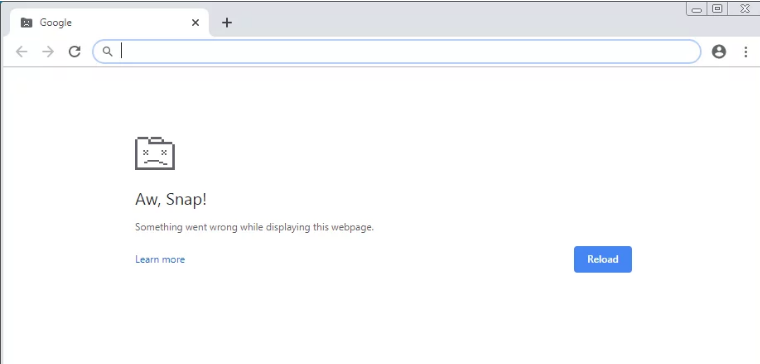
Google Chrome keeps crashing
On Windows, Chrome became unresponsive after opening multiple tabs and crashed many times a day, tanking productivity. After trying different fixes, here is what finally solved it.
Table of Contents
How to Fix Chrome Crashes?
Rolling back to an older Chrome build and turning off auto-updates stopped the repeated crashes. The issue likely came from a bug in Chrome 93.0.
How to Download an Older Chrome Version?
Google doesn’t provide official legacy downloads. I used a third-party site to install the 64-bit 86.0.4240.75 build. Download link >
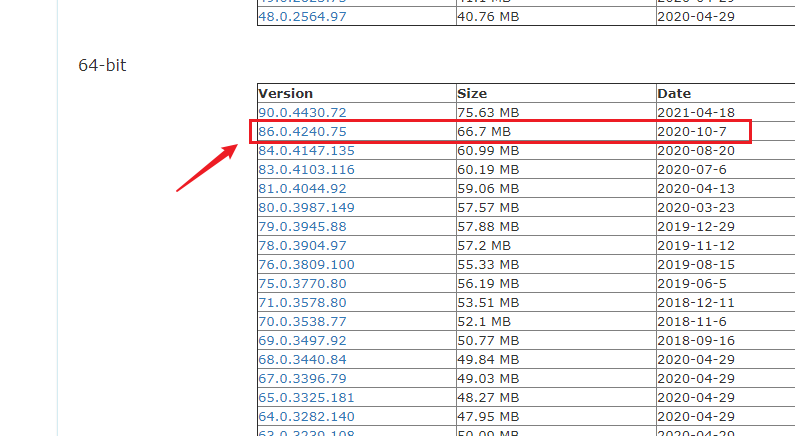
Legacy Chrome download
How to Disable Chrome Auto-Update?
1) On the desktop or Start menu, open Control Panel. Switch the view to Large Icons.
2) Go to Administrative Tools > Services.

Windows Control Panel – Administrative Tools
3) In the Services list, find Google Update Service (gupdate) and double-click it.
4) Set Startup type to Disabled, click OK, and restart your PC. Chrome will stop auto-updating to the latest build.
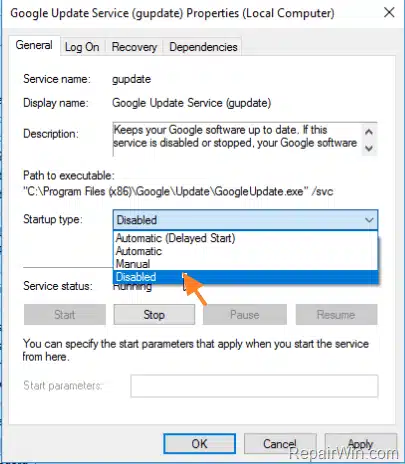
Disable Chrome auto-update service
What Didn’t Work
CPU and memory usage were fine, so hardware wasn’t the issue. Reinstalling Chrome didn’t help. Clearing disk space, cache, and extensions also failed to stop the crashes.